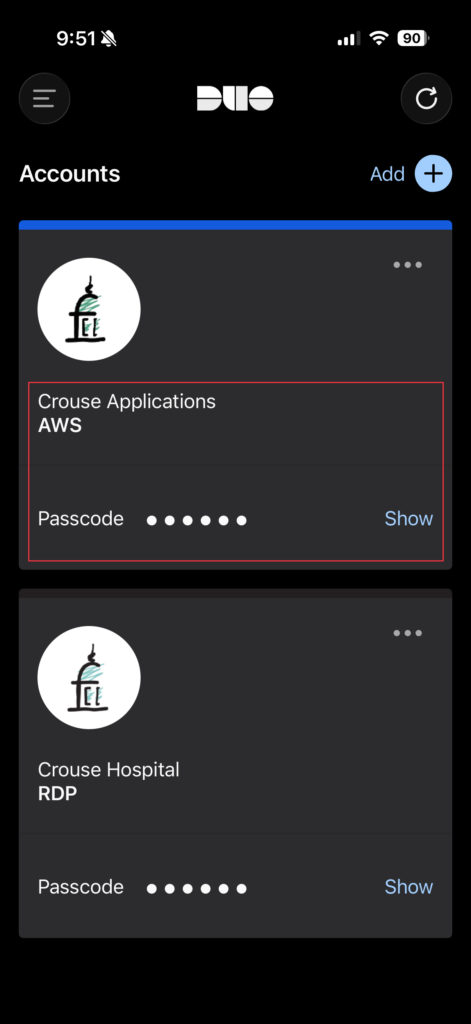
Before beginning, you will need to set up a new Duo instance on your cell phone.
On your cell phone, open a web browser and go to enrollvpn.crouse.org. Follow the prompts there to set everything up. Once done, there will be a new instance in the Duo app called Crouse Applications.
On your home computer:
1 – Open a web browser and navigate to https://clients.amazonworkspaces.com and download the appropriate client, either for Windows or macOS.
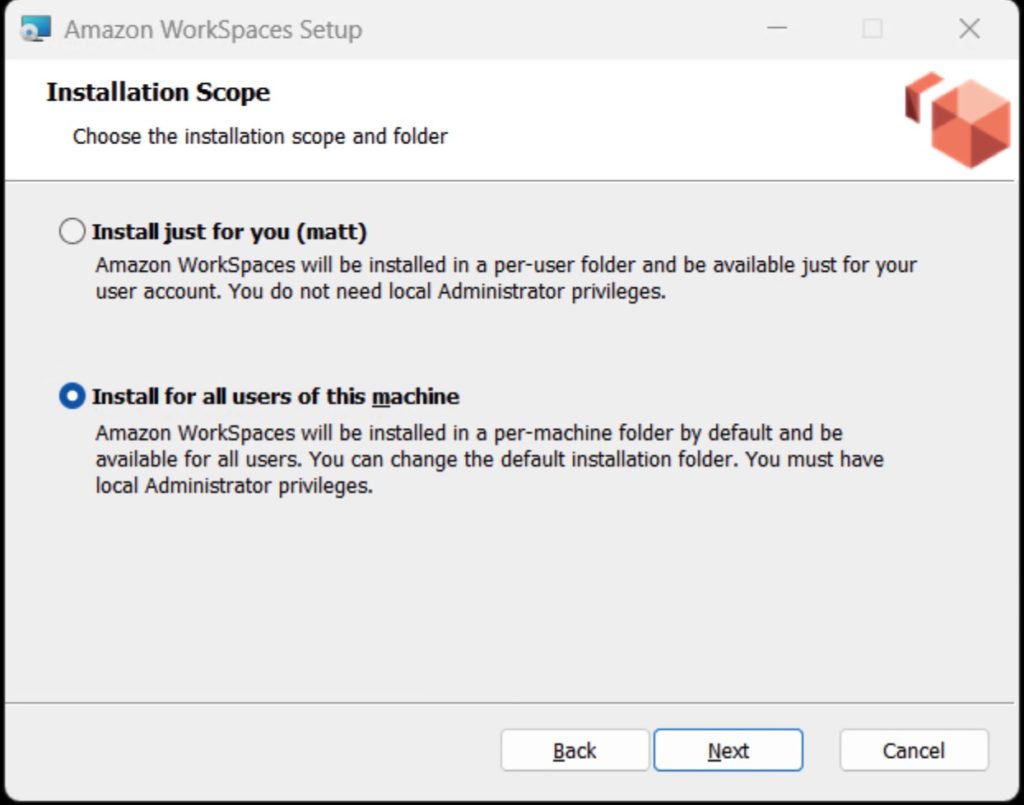
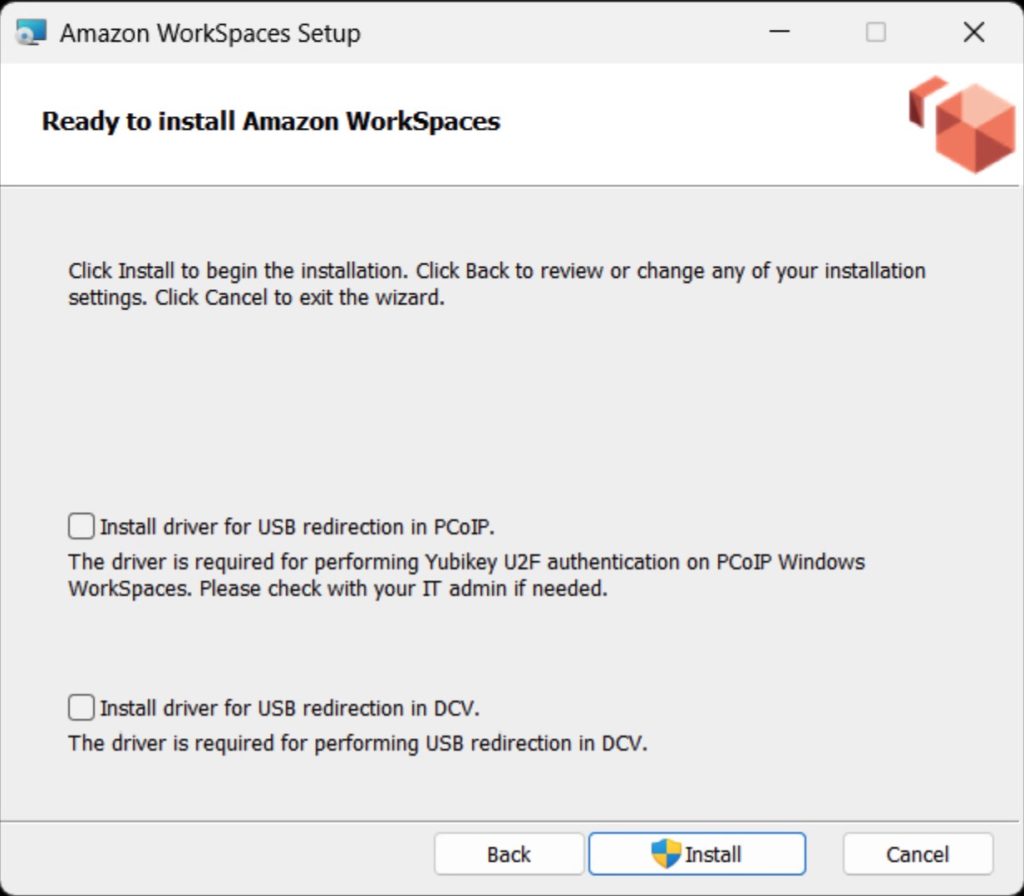
2 – Launch the installer. When prompted, click Install for All users. Leave the boxes for Installing Drivers for USB redirection unchecked.
3 – Once installed, launch the application.
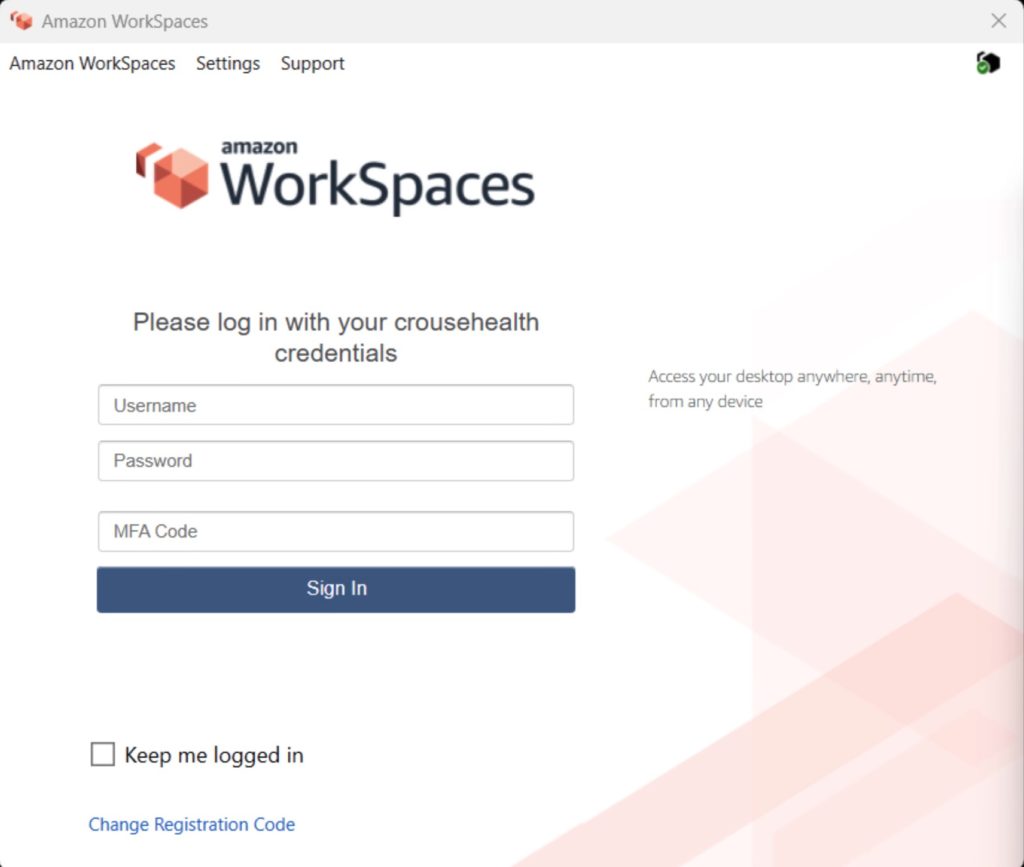
4 – The registration code is: SLiad+YMTCZP . This code is case sensitive. You will not have to put this code in on subsequent launches.
5 – Login using your Crouse login credentials. For the MFA code, go into the Duo app on your phone, show the code under Crouse Applications, and refresh the code. Then enter that code into the Workspaces logon box.